
The fastest way to convert an Instagram video to MP3 is to copy the video’s link, paste it into an online converter like our Instagram audio downloader, and save the file it gives you. It takes under a minute, works on phones and computers, and you don’t need to log in or install anything.
Instagram has no “save as MP3” button, which is exactly why people keep video templates searching for this. Below you’ll find the quick method, two backup methods for when a website misbehaves, and a few things most guides skip: what quality to realistically expect, when M4A is the better choice, and what to do when the conversion fails.
Quick answer: 4 steps
- Open the Reel or video on Instagram, tap the three dots, and choose Copy link.
- Open the Instagram to MP3 converter.
- Paste the link and tap the download button.
- Pick MP3 (or M4A) and save the file.
Why Instagram doesn’t let you save audio
Instagram stores a Reel as one video file with the sound baked in. There’s no separate audio file sitting around for the app to hand you. Even if you post a Reel yourself, the download option gives you an MP4, not an MP3.
That means every method here does the same basic thing: get the video, pull the audio track out, and save it in a format your device understands.
One shortcut worth knowing: if you only want to reuse a sound in your own Reel, you don’t need to convert anything. Tap the audio name at the bottom of the Reel and look for the Save audio option. It’s saved inside Instagram, ready for your next Reel. Convert to MP3 only when you want the sound outside the app, for offline listening, a video editor, or a ringtone.
Method 1: Use an online converter (fastest)
This is what most people should use. It runs in your browser, so it behaves the same on an iPhone, an Android phone, a Windows laptop, or a Mac.
Step by step
- Copy the link. In the Instagram app, open the Reel or video, tap the three dots in the top right corner, and select Copy link. On a computer, copy the address from your browser’s address bar.
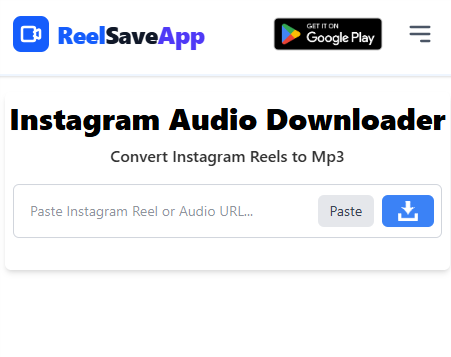
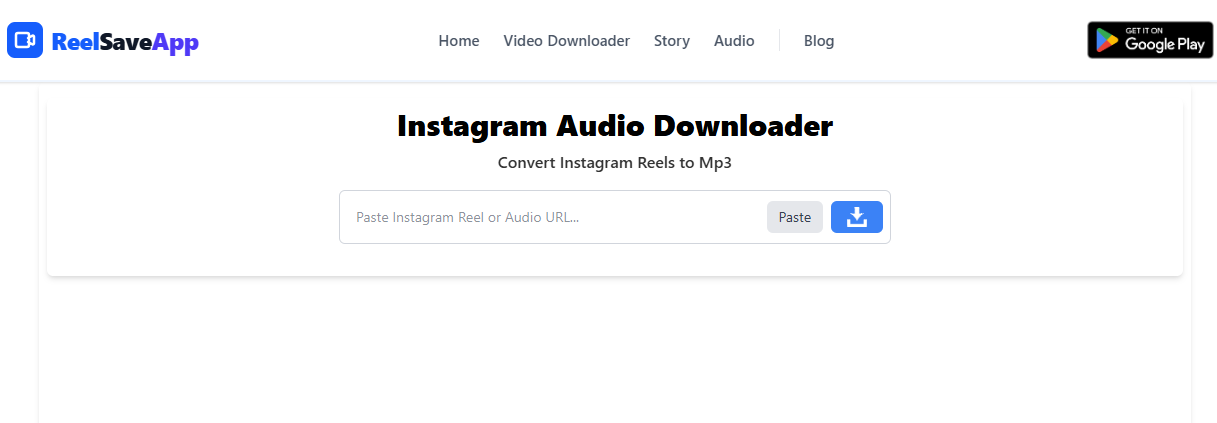
- Open the converter. Go to the ReelSave Instagram audio downloader. Any browser works.
- Paste and process. Paste the link into the input box and tap the download button. The tool fetches the video and separates the audio, which usually takes a few seconds.
- Choose the format. Select MP3 for maximum compatibility. If M4A is offered, it’s worth a look (more on that below).
- Save it. On Android the file normally lands in your Downloads folder. On iPhone, Safari saves it to the Downloads folder inside the Files app.
Good to know before you start
- The post has to be public. A link-based tool can’t reach private accounts.
- You can convert one link at a time, but there’s no daily limit. Just paste the next link when the first one finishes.
- If your link is a Story rather than a Reel or post, use the Story saver instead, since Stories work differently.
- Want the picture too? The Reels downloader saves the full video as MP4.
Method 2: Download the video, then extract the audio with VLC or ffmpeg
Slightly more work, but you stay in full control, and nothing depends on a website being up. This suits people who already have the video file, for example your own Reel from your camera roll.
With VLC (free, Windows, Mac, Linux)
- Open VLC and go to Media, then Convert / Save.
- Click Add, pick your video file, then click Convert / Save.
- Under Profile, choose Audio – MP3.
- Click Browse, choose where to save it, and type a filename that ends in .mp3.
- Click Start. A Reel-length clip finishes almost immediately.
With ffmpeg (for people comfortable with a terminal)
To make an MP3:
ffmpeg -i reel.mp4 -vn -codec:a libmp3lame -q:a 2 reel.mp3To keep the original audio without re-encoding it (usually AAC, saved as M4A):
ffmpeg -i reel.mp4 -vn -acodec copy reel.m4aThe second command is my favorite when quality matters, because nothing gets compressed a second time.
A trap to avoid: some guides tell you to rename the file from .mp4 to .mp3. That doesn’t convert anything. Some players will still play it, many won’t, and editing apps often refuse it. Use a real converter.
Method 3: Screen record and strip the audio
This is the last resort. Play the video, screen record it with sound, then pull the audio from the recording using VLC or a free editor like Audacity.
It works on almost anything you can watch, which is its one real advantage. The downsides are real, though: you’ll capture notification pings if you’re not careful, you need to record in real time, and the audio goes through an extra round of compression. Try Method 1 first, and only fall back to this when nothing else cooperates.
Which method should you use?
| Method | Speed | Quality | Best for |
|---|---|---|---|
| Online converter | A few seconds | Same as the source audio | Most people, any device |
| VLC / ffmpeg | About a minute, plus finding the file | Same as the source (best with ffmpeg copy) | Videos already on your computer |
| Screen record | Real time, plus extraction | Slightly lower | When nothing else works |
MP3 or M4A: which one should you pick?
Choose MP3 if you want it to play everywhere: any phone, an older car stereo, a USB stick, a smart speaker. It’s the safe default.
Choose M4A if you plan to edit the audio. Instagram generally delivers its sound as AAC, which is the codec M4A uses, so saving as M4A can skip a conversion step and avoid squeezing the audio twice. Most modern phones and editing apps open M4A without trouble.
If you’re not sure, grab MP3 now and don’t think about it again.
What audio quality to expect
Here’s the honest part that most converter sites leave out. The MP3 you get can only be as good as the audio Instagram already stores, and that audio is compressed when the video is uploaded. Figures around 128 kbps are commonly cited for Reels.
So if a tool promises a “320 kbps” file, it’s giving you a bigger file, not better sound. Raising the bitrate after the fact can’t bring back detail that was already thrown away.
What does that mean in practice? Voice clips, podcasts, interviews, and most background tracks sound perfectly fine. Music sounds a little flatter than it does on a streaming app. If you want one particular song at full quality, identify it from the Reel’s audio label and get it from a proper music service.
When the conversion doesn’t work
Most failures come down to a handful of causes:
- The post is private. Link-based converters only see public posts.
- You copied the wrong link. A profile link or a link to your own feed won’t work. You need the link to the specific Reel or post.
- The post was deleted or the account changed. Open the link in a private browser window. If you can’t see the video there, the tool can’t either.
- The file is silent. Instagram mutes audio when a music claim is raised. If the Reel plays without sound on Instagram, the extracted MP3 will be silent too.
- It’s a Story. Use the Story saver.
- Your browser is interfering. A strict ad blocker or VPN can block the download. Refresh the page, pause the blocker for the site, and try again.
Still stuck? Fall back to Method 2. If you can get the video onto your device at all, VLC will get you the audio.
Is it legal to convert Instagram videos to MP3?
This isn’t legal advice, but the practical rule is simple. Saving audio for your own offline listening or reference is generally treated very differently from re-publishing it.
The video and its sound belong to the creator, and any music in it belongs to the rights holder. Don’t re-upload someone else’s audio, don’t use it in ads or paid work, and if you want it in your own content, ask the creator or use a licensed track. Instagram’s terms of use also apply, so it’s worth skimming them.
Frequently asked questions
Can I convert an Instagram video to MP3 without an app?
Yes. Copy the video link, paste it into a browser-based converter such as the ReelSave audio converter, and save the MP3. Nothing needs to be installed and no login is required.
Is it free to convert Instagram videos to MP3?
ReelSave’s converter is free, with no subscription or sign-up. VLC and ffmpeg are free as well if you’d rather do it on your computer.
Why is my converted MP3 silent or very short?
The most common cause is that Instagram muted the original audio because of a music copyright claim. If the Reel has no sound on Instagram, the extracted file will have none either.
Can I convert audio from a private Instagram account?
Not with a link-based converter. Online tools can only reach public posts. For private content you’d need the owner to share the file with you.
Does converting to MP3 improve the audio quality?
No. The MP3 can only be as good as the audio Instagram stores, which is already compressed. Choosing a higher bitrate makes the file bigger but doesn’t add detail.
Can I use an Instagram MP3 in my own videos or on YouTube?
Only with permission. Personal offline listening is one thing. Re-uploading someone else’s music or voice, or using it commercially, usually needs a license or the creator’s consent.
Wrapping up
For almost everyone, the answer to how to convert an Instagram video to MP3 is the first method: copy the link, paste it into the Instagram audio downloader, and save the file. Keep VLC around as a backup, expect source-level quality rather than studio quality, and respect the creator’s rights.
Saving audio from other apps too? We have the same kind of tool for TikTok to MP3 and Facebook to MP3.
ReelSaveApp is not affiliated with Instagram or Meta. All content remains the property of its respective owners. Please respect copyright.