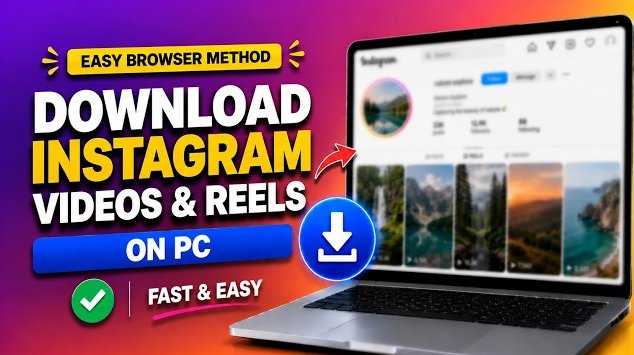

Saving Reels on a computer is the easiest way to build a library you can edit, archive, or present from. You don’t need a browser extension or desktop software. An Instagram Reels downloader online works in Chrome, Edge, Firefox, or Safari on both Windows and Mac.
How to download Instagram Reels on a computer
- Open the Reel on Instagram.com. Click the Reel from a profile or your feed so it opens on its own page.
- Copy the URL. Click the address bar and copy the link. It usually looks like
instagram.com/reel/XXXXX/. - Open ReelSaveApp in a new tab: reelsaveapp.com.
- Paste the link into the box and click Download.
- Save the video. Click the download button and choose a folder if your browser asks.
Where is the file saved?
- Windows: the Downloads folder, unless you changed your browser’s download location.
- Mac: the Downloads folder, also available from the Dock or Finder sidebar.
If you want a different folder every time, turn on “Ask where to save each file” in your browser’s download settings.
Using the Reel after you download it
The file is an MP4, a format that plays in most media players and imports into most video editors. Common uses include:
- Building a reference folder of ideas for your own content
- Adding a clip to a presentation or classroom lesson
- Keeping a backup of Reels you created yourself
- Watching offline without using mobile data
Tips for a smooth download on desktop
- Use the Reel’s own page. A profile, story, or hashtag link isn’t a Reel link and won’t work.
- Use an up-to-date browser. Old versions can block or interrupt downloads.
- Disable extensions that block pop-ups or downloads if nothing happens after you click Download.
- Name your files. Rename videos as soon as you save them so a growing library stays easy to search.
Need only the sound?
Use our Instagram audio download tool to extract the audio from a Reel as an MP3 or M4A file.
FAQ
Do I need a browser extension?
No. Everything happens on the website, so there’s nothing to install.
Does it work the same on Windows and Mac?
Yes. The steps are identical, only the Downloads folder location differs.
Can I download several Reels?
Yes. Paste one link at a time and repeat the steps for each Reel.
Download your first Reel
Open a Reel, copy the link, and paste it into our Instagram Reels downloader.
Only download Reels you have the right to save, and give credit to the creator if you share them. Saving for personal, offline viewing is the intended use.