
You’ve seen it a hundred times this week: the same clip of a song, the same voice snippet, showing up under completely different videos. That’s trending audio doing its job. Instagram’s algorithm gives a noticeable boost to Reels that use sounds already gaining traction, which is exactly why creators hunt these tracks down and save them before everyone else catches on.
The tricky part is that Instagram doesn’t make saving audio especially obvious. There’s no big “download” button sitting on a trending sound. So this guide walks through the actual methods that work right now, including when you need an Instagram audio download tool because Instagram’s own save feature comes up short.
Why Trending Audio Matters So Much
Instagram’s Reels algorithm doesn’t just look at your follower count or how polished your editing is. It also weighs whether the audio track is currently getting a lot of plays across the platform. A Reel built on a rising sound tends to get pushed into more Explore feeds than the identical video set to an obscure or muted track.
That’s the whole game for a lot of small accounts. You don’t need a huge following if the sound itself is already doing work for you. Grab it early, before every account in your niche has used it, and you’re riding the wave instead of chasing it.
Method 1: Save Audio Directly Inside Instagram
This is the built-in option, and it’s the first thing to try since it keeps everything native to the app.
- Open the Reel with the audio you want.
- Tap the audio name at the bottom left of the screen, or the scrolling record icon.
- This opens the audio page, showing every Reel that’s used that sound.
- Tap the bookmark icon (the ribbon shape) to save it.
- Find it later under your profile, then the three-line menu, then Saved, then the Audio tab.
This gets you a saved shortcut to the sound so you can use it in your own Reel later. What it doesn’t give you is the actual audio file. If you just want to reuse the sound inside Instagram’s own editor, this method is enough. If you want the file itself, for editing offline, layering into another project, or reusing on TikTok or YouTube Shorts, you’ll need to go further.
Method 2: Use the Original Audio Attribution
Sometimes a Reel is using original audio created by another user rather than a licensed song. In that case, tapping the audio name takes you to that person’s original Reel instead of a music library page.
From there you can:
- Repost using the same original audio (through the audio page’s “Use audio” option)
- Message the creator directly if you want permission to use a clip commercially
- Note the audio for reference and search for it manually later
This matters because a good chunk of what goes viral on Reels isn’t licensed music. It’s someone’s voiceover, a sound effect, or a snippet from a podcast. Instagram treats these the same way as songs for feed purposes, but the save mechanics differ slightly since you’re really saving a link to another person’s post.
Method 3: Screen Recording as a Manual Workaround
Before third-party tools existed, this was basically the only option, and some creators still fall back on it.
Play the Reel, start a screen recording on your phone, then crop the audio out afterward using any basic video editor. It works, technically. But the audio quality takes a hit from being re-encoded twice, you pick up background phone noise if you’re not careful, and honestly it’s just slow when you’re trying to save multiple sounds in one sitting.
I’d only recommend this if you’ve already tried the other methods and hit a wall for some reason specific to your device or region.
Method 4: Use a Dedicated Instagram Audio Download Tool
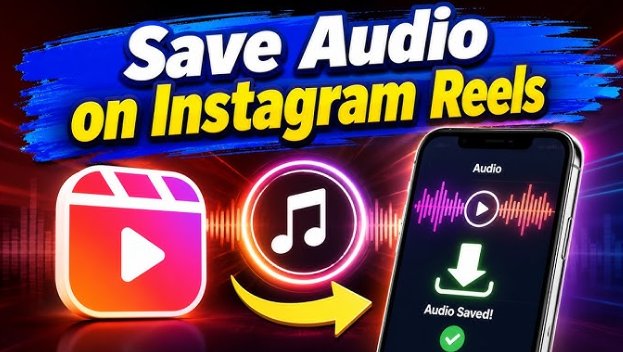
For anyone who wants the actual MP3 or M4A file, not just a bookmark inside the app, a purpose-built Instagram audio download service is the more reliable route. Tools like the one at reelsaveapp audio downloader are built specifically to pull clean audio from a Reel link, which sidesteps the quality loss you get from screen recording.
The general process looks like this:
- Open the Reel in the Instagram app and tap Share, then Copy Link.
- Paste that link into the audio download tool.
- Let it process the Reel and extract the audio track.
- Download the resulting file to your device.
This approach is worth it when you’re building a personal sound library for editing work, need the audio for a project outside Instagram, or want to isolate just the voice or music without the video attached. Video editors especially like this since it means dropping a clean audio track straight into their timeline instead of muting and re-extracting from a downloaded video file.
One thing worth checking before you use any tool like this: make sure the Reel’s privacy settings actually allow this kind of extraction, and stick to public accounts. Private content isn’t fair game regardless of what a tool technically lets you do.
How to Spot Trending Audio Before It Peaks
Saving the sound is only half the job. Catching it early is where the real advantage sits.
Watch the Explore page daily. If you’re scrolling and notice the same handful of tracks showing up across unrelated accounts within a day or two, that’s usually an early signal, not a late one.
Check the audio page’s Reel count. Tap into any sound and look at how many Reels have used it. Under a few thousand with recent activity usually means you’re still early. Once it’s in the hundreds of thousands, the moment has mostly passed for smaller accounts trying to ride the boost.
Follow niche-specific trend accounts. Most content categories, fitness, cooking, small business, have accounts whose entire purpose is flagging rising sounds within that niche before they hit the mainstream Explore feed.
Pay attention to what’s trending on TikTok two weeks prior. A lot of Instagram’s trending audio started life on TikTok first. If you track TikTok sounds gaining steam, you often get a preview of what’s about to spike on Reels.
A Quick Note on Copyright
Instagram licenses a huge catalog of commercial music for use inside its own Reels editor, which is why Method 1 is safe for personal accounts. Business accounts have a smaller pool of cleared music to work with, since commercial usage rights differ from personal usage rights.
When you extract audio using a third-party tool for use outside Instagram, you’re stepping outside that licensing arrangement. Using extracted commercial music in another public video, especially one tied to a business, can run into copyright claims depending on the platform. Original audio from another creator carries its own consideration too: crediting them, or asking first, is just good practice even when it’s not strictly required.
FAQ
Can I save trending audio without the original video? Yes, through the audio page’s bookmark feature inside Instagram, or by extracting just the audio track using a download tool if you need the actual file.
Does saving audio notify the original creator? No. Bookmarking a sound or using it in your own Reel doesn’t send a notification to whoever posted the original clip.
Why does a sound sometimes say “Audio unavailable”? This usually happens when the original poster deleted their Reel, switched their account to private, or the music was pulled from Instagram’s licensed catalog for that region.
Is there a limit to how much saved audio I can store? Instagram doesn’t publish an official cap on saved audio, but very large saved libraries can become slow to scroll through inside the app.
Wrapping Up
The fastest route to reusing trending sound inside Instagram itself is the built-in bookmark feature. But if you need the actual audio file for editing, cross-posting, or building a personal sound library, a dedicated Instagram audio download tool does the job with far less quality loss than screen recording. Either way, catching the sound early is what actually moves the needle. The tool you use to save it matters less than how quickly you spot it in the first place.