

Instagram Reels have completely transformed how we consume content online. From hilarious comedy sketches and jaw-dropping travel montages to quick, actionable cooking recipes and educational tutorials, Reels offer endless entertainment and information.
However, a common frustration shared by millions of iOS users is the inability to easily access these videos when offline. Whether you are prepping for a long flight with no Wi-Fi, compiling creative inspiration for your own content strategy, or simply wanting to share a hilarious clip directly with a friend via text, having that video saved locally is incredibly convenient.
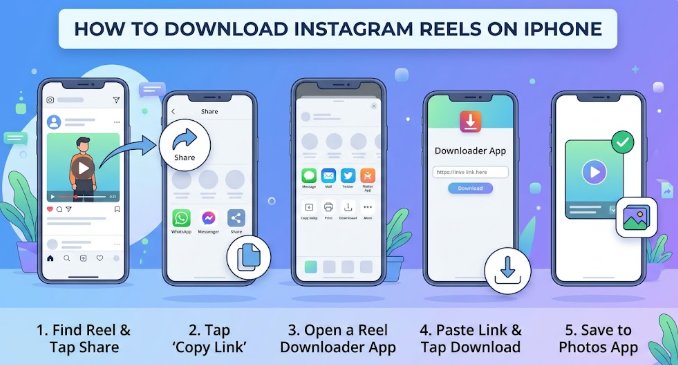
While Instagram has introduced some native downloading features over the years, they come with heavy restrictions—such as stripping away the audio due to licensing laws or blocking downloads entirely on certain accounts.
Fortunately, if you are using an iPhone, you aren’t locked into just one way of doing things. This comprehensive, up-to-date 2026 guide covers every single viable method to download Instagram Reels directly to your iOS device. We will walk through everything from official in-app features and seamless web-based tools like the ReelSave App, to built-in system workarounds like screen recording.
Can You Download Instagram Reels on iPhone?
The short answer is yes, but it depends heavily on who owns the video and what the account’s privacy settings look like.
Instagram’s built-in platform limitations are designed primarily to protect intellectual property and user privacy. By default, the app allows users to natively download public Reels, but there is a major catch: if the video uses a licensed commercial music track rather than original audio, Instagram will automatically strip the sound from the downloaded file. Furthermore, creators have the option to toggle off download permissions for their public videos entirely.
Public vs. Private Reels
-
Public Accounts: If a public creator has enabled download permissions, any user can tap the share button and download the video directly to their device.
-
Private Accounts: If an account is set to private, their Reels are strictly protected. Instagram completely disables the native download button for these videos to ensure the user’s content stays within their approved follower list.
Copyright Considerations
Before downloading any media file online, it is crucial to understand copyright boundaries. Downloading a Reel to watch offline, show a family member, or keep as a reference is generally considered fair use. However, re-uploading someone else’s content to your own page, modifying it without permission, or using it for commercial monetization without explicit credit is a direct violation of copyright laws and Instagram’s terms of service.
Saving vs. Downloading: What’s the Difference?
Many casual users confuse these two terms, but they serve completely different purposes on iOS:
-
Saving: This action acts like a virtual bookmark. When you “save” a Reel, you are storing it within a dedicated folder inside the Instagram app itself. It requires an active internet connection to watch later, and it takes up zero space on your iPhone.
-
Downloading: This action extracts the actual MP4 video file from Instagram’s servers and exports it directly to your iPhone’s local storage (the Files app or the Photos app). Once downloaded, you can watch the video entirely offline, edit it, or share it via external messaging apps.
Method 1: Download Your Own Instagram Reels
If you are a content creator looking to archive your work or repurpose your video for other platforms like TikTok or YouTube Shorts, downloading your own published Reels is incredibly straightforward.
Step-by-Step Instructions
-
Open the Instagram app on your iPhone.
-
Tap your Profile icon in the bottom-right corner of the navigation bar.
-
Select the Reels tab (indicated by the clapperboard icon) situated right above your main photo grid.
-
Tap on the specific Reel you want to download to open it in full-screen mode.
-
Tap the Share/Send icon (the paper airplane symbol) located on the right side of the screen.
-
Look at the bottom options menu and tap the Download button.
[ Instagram Feed ] -> [ Your Profile ] -> [ Select Reel ] -> [ Tap Share (Airplane) ] -> [ Tap Download ]
Benefits of Doing This Natively
-
Original Quality: Because it is your original upload, you will receive the highest possible render resolution allowed by the app.
-
Completely Safe: There is absolutely no risk of account compromises because you are operating entirely within the official Instagram infrastructure.
-
No Third-Party Tools Required: You do not need to install extra software, copy external links, or open a web browser to complete the action.
Method 2: Save Instagram Reels Inside the App
When local space on your phone is tight, or if you simply want to curate a folder of inspiration that you can look back on while connected to Wi-Fi, the built-in bookmarking feature is your best bet.
Step-by-Step Instructions
-
Open Instagram and navigate to the Reel you wish to keep.
-
Tap the three dots (…) or look directly at the action panel on the right side of the video.
-
Tap the Bookmark/Save icon (it looks like a small ribbon or flag).
-
To organize your saved videos, tap the Add to Collection pop-up that appears at the bottom of the screen to categorize your clips into neat folders.
How to Find Your Saved Reels Later
To view your bookmarked clips, simply head to your Profile, tap the three stacked lines (hamburger menu) in the top right corner, select Saved, and tap All Posts or your custom collection folder.
Pros
-
Extremely fast and takes less than two seconds to execute.
-
Uses absolute zero local storage space on your iPhone.
-
Perfect for organizing visual mood boards or content research categories.
Cons
-
You cannot watch the videos offline; if you lose internet or cellular data, the folder will not load.
-
If the original creator deletes the Reel or takes their account private, the video will instantly vanish from your saved collection folder forever.
Method 3: Download Instagram Reels on iPhone Using ReelSave App
When you want to download a public Reel created by someone else—and you want to ensure it keeps its audio completely intact—native methods often fall short. This is exactly why millions of iOS users rely on specialized online downloaders.
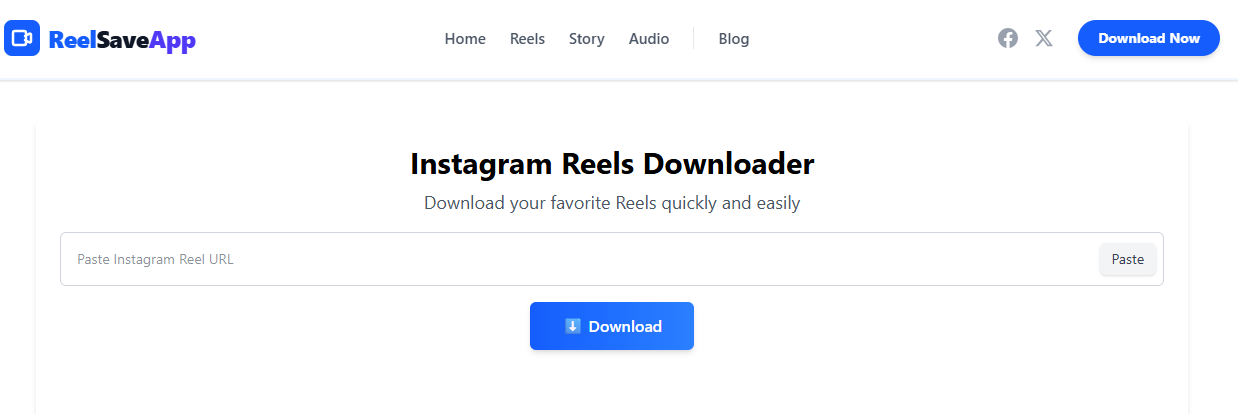
The primary advantage of using a web-based utility is convenience: it sidesteps the strict constraints enforced by the App Store and doesn’t require you to grant shady apps access to your personal Instagram credentials.
Step-by-Step Instructions
Step 1: Copy the Reel Link
Open Instagram, locate the public Reel you want to grab, and tap the Share (paper airplane) icon. From the pop-up share sheet menu, tap Copy Link. The URL is now securely saved to your iOS clipboard.
Step 2: Visit ReelSave App
Minimize Instagram and launch your preferred iOS web browser (Safari is highly recommended for smooth file downloading). Navigate directly to the web utility tool. The ReelSave App helps users download Instagram Reels directly to their iPhone without installing extra software.
Step 3: Paste the URL
Locate the clean, prominent input field at the center of the web page. Tap inside the box, hold for a brief second, and select Paste to insert the Instagram URL you copied earlier.
Step 4: Tap Download
Click the large, clearly labeled Download button right next to the text field. The system will take a few seconds to process the link, analyze the source server, and generate a direct file download link for you.
Step 5: Save to Photos
When the video preview appears on your screen, tap the processed download button. Safari will display an official iOS system prompt asking if you want to download the file. Confirm the action. The video file will automatically route to your local storage.
Key Benefits
-
No App Installation: You do not have to fill up your iPhone storage with ad-heavy utility apps from the App Store or risk your digital privacy.
-
HD Quality Resolution: Extracts the cleanest, highest-resolution MP4 stream straight from the source metadata.
-
Lightning-Fast Engine: The download links are completely parsed and generated in just a matter of seconds.
-
Optimized for Safari: Designed perfectly around iOS file structure limitations, ensuring a completely seamless save process.
Method 4: Screen Record Instagram Reels
If you stumble across a private video shared by a close friend, or run into an error where a specific creator has completely locked down their download permissions, you can always rely on the built-in screen recording utility on your iPhone.
Step-by-Step Instructions
-
Swipe down from the top-right corner of your iPhone screen to launch the Control Center. (If you use an older iPhone with a physical Home button, swipe up from the bottom edge instead).
-
Look for the Screen Recording icon (a solid white circle surrounded by a thin white ring). If it isn’t there, navigate to your iPhone’s Settings > Control Center and tap the green “+” next to Screen Recording to add it.
-
Tap the icon. A three-second countdown will begin, and the status bar or Dynamic Island at the top of your screen will turn red.
-
Quickly switch back over to Instagram and play the Reel from the beginning in full-screen mode. Let it run completely through.
-
Once finished, tap the red recording indicator at the top of your screen and hit Stop.
[ Control Center ] -> [ Start Screen Recording ] -> [ Play Reel on Instagram ] -> [ Stop Recording ]
-
Open your Photos App, open the new video clip, tap Edit, and use the timeline crop handles to slice away the beginning and end of the clip where you were navigating menus. You can also crop the frame to cut out the Instagram UI overlays.
Pros
-
A universal workaround that functions across virtually every single app and privacy wall on iOS.
-
Captures exactly what is playing on your display in real-time.
Cons
-
Lower Overall Quality: You are recording a live display stream rather than downloading the pure digital file asset, resulting in a minor loss of crispness.
-
Audio & Notification Interruptions: If a loud notification banner pops up on your screen while recording, it will be permanently burned into your video file. You must manually turn on Do Not Disturb or Focus Mode beforehand to ensure a clean capture.
How to Save Downloaded Reels to iPhone Photos App
When you use a browser-based downloader tool like ReelSave App on iOS, Safari defaults to sending your files directly to the native Files App under your default “Downloads” directory to keep your device clutter-free. If you want that video sitting directly inside your camera roll for easy social sharing, you just need to perform one final step.
| Step | Action | Description |
| 1 | Open Files App | Locate and launch the blue file folder icon on your home screen. |
| 2 | Locate Video | Go to the Browse tab, select Downloads, and tap your processed Reel. |
| 3 | Open Share Menu | Tap the icon in the bottom-left corner (square with an upward arrow). |
| 4 | Save Video | Scroll through the system options sheet and tap Save Video. |
The video will instantly transfer over to your primary Photos app, categorized neatly under your “Recents” album as well as the native “Videos” media type filter.
Why Instagram Reels Won’t Download on iPhone
If you have tried the steps outlined above and are still running into errors saving media assets locally, the underlying problem usually boils down to a handful of classic iOS configuration hurdles.
Poor Internet Connection
High-definition media files require stable bandwidth to process properly. If you are sitting on an unstable cellular connection or a weak public Wi-Fi network, the request to download the MP4 package will timeout, leading to corrupted, incomplete, or failed files.
Reel Is Private
As touched upon previously, if a user keeps their profile locked down to approved followers only, third-party download platforms cannot scrape or extract their data links out of respect for standard privacy boundaries.
Instagram Restrictions
Creators frequently toggle off the “Allow people to download your Reels” setting inside their advanced privacy menu options before hitting publish. When this occurs, the platform blocks native export options entirely for that specific video post.
Outdated iOS Version
Apple constantly updates its Safari file-handling protocols and system privacy sandboxes. If your iPhone is still running a heavily outdated operating system version, your browser might struggle to execute download commands smoothly. Head to Settings > General > Software Update to ensure your device is current.
Safari Permissions Issues
If you have accidentally configured your iOS Safari permissions to block all external pop-ups or strictly limit local downloads, the browser will silently drop downloaded items. Ensure Safari is permitted to download files directly to either your iCloud Drive or local iPhone storage.
Best Ways to Use Downloaded Instagram Reels
Once you have mastered the art of saving clips effortlessly onto your phone, you unlock a massive world of productivity and offline utility.
-
Offline Travel Viewing: Perfect for curating hours of entertainment before long flights, subway commutes, or road trips through deep rural areas with zero cellular reception.
-
Educational Content Archiving: Keep life-saving coding clips, financial tips, or language-learning lessons organized inside specialized photo albums for quick daily review.
-
Travel and Adventure Inspiration: Save precise travel itineraries, hidden restaurant recommendations, and packing guides locally so you can access them on the ground while traveling abroad without data roaming.
-
Recipe Collections: Build a dynamic digital cookbook on your device. Having a step-by-step cooking tutorial saved directly in your camera roll means you won’t have to constantly unlock your phone and search through a busy social media feed with messy hands while prepping dinner.
-
Professional Content Research: For marketers and designers, downloading trending Reels makes it easy to dissect video editing styles, frame-by-frame transitions, and on-screen text placements using desktop editing tools.
Instagram Reels Download Tips
To ensure your downloading experience remains as smooth, safe, and efficient as possible, keep these expert tips in mind:
💡 Use Wi-Fi for HD Downloads: High-definition video streams can quickly consume your cellular data limits. Always use a stable Wi-Fi connection when downloading large batches of media files.
💾 Keep iPhone Storage Free: Video assets consume significant local storage space. Regularly audit your Photos app and clear out old files to ensure your device has plenty of room to process incoming videos.
⚠️ Respect Copyright Rules: Always remember that downloaded content belongs to the original creator. If you plan to share a clip externally or use it as a reference, always provide prominent credit to the original account handle.
Frequently Asked Questions
Can I download Instagram Reels on iPhone without an app?
Absolutely. By using an advanced web downloader like the ReelSave App via Safari, you can save any public Reel directly to your camera roll without downloading bloatware or installing third-party apps from the App Store.
Is downloading Instagram Reels legal?
Yes, downloading videos for personal, offline viewing or educational referencing falls under standard fair use guidelines. However, downloading content to re-upload, monetize, or distribute commercially without the creator’s explicit consent is highly illegal and violates platform rules.
Can I download private Instagram Reels?
No. Standard web downloaders and online scraping utilities cannot bypass Instagram’s secure privacy walls. To grab a video from a private account you follow, your only functional option is to use the native iOS Screen Recording tool.
Why is my Reel downloading without sound?
If you use Instagram’s native download button on another creator’s public video, the platform will automatically strip away the audio track if it contains licensed commercial music. To get the video with its sound completely intact, use an online tool like ReelSave App instead.
Does ReelSave App work on iOS?
Yes, it is fully optimized to run flawlessly on iOS devices using Safari, Chrome, or any alternative mobile browser, providing direct file access without requiring a jailbreak or extra tweaks.
Where are downloaded Reels stored on iPhone?
When downloading via Safari, files are routed directly into your Files App inside the designated “Downloads” directory. From there, you can easily export them straight to your main Photos App camera roll via the system Share sheet.
Can I download Instagram Reels in HD quality?
Yes. Web-based processing tools extract the exact high-definition MP4 source file that the creator uploaded to the server, preserving crisp details and audio fidelity.
Conclusion
There is no single “correct” way to save media to your phone; the ideal choice depends completely on what you plan to do with the video file.
If you want absolute simplicity and don’t care about storage limits, bookmarking clips inside Instagram is great for a quick browse. If you are archiving your own personal creative media, the native in-app download workflow works perfectly. However, when you need a complete, unrestricted file from a public feed with high-definition video and full audio intact, using a dedicated web-based tool is by far the most efficient route.
Need a quick way to save Instagram Reels on iPhone? Use ReelSave App to download public Reels in just a few taps and watch them offline anytime.
[…] Also Read: How to Download Instagram Reels on iPhone (2026 Guide) […]